
Downloading Brightcove Videos
In this post, I’ll explain the materials and steps needed to downloading Brightcove videos. This tutorial is not for illicit use. Please don’t steal other people’s work. There are plenty of legitimate reasons to download a video. If you’ve got a good reason to download a video, I hope this tutorial helps you.
I have only tried this on Mac OS X. It should work the same way on Windows, but the steps to remove Flash Player will be different.
Quick note: if you’re looking for more stuff like this, check out my company’s site: Central MA SEO by Mxt Media.
Now, onto the task at hand…
Tools required
- Safari 4+ WITHOUT Flash Player installed (how to temporarily remove Flash Player from Safari)
- Firefox or any other browser

Locate a webpage with a Brightcove video embedded
Load that page in your Flash Player-less Safari 4+. This page will be our starting point. We have to do a few things to the page before we can access the video, but if you’re seeing a page with a Brightcove video embedded, you’re on the right track.
Click to load the video, if required. In some cases, the video is not loaded by default. Users must click/tap a play button or some other call-to-action in order to load the embedded video. If that’s the case with your page, please click to play. We need to see the video embed in action before moving on. In the next step we’ll see what happens when we disable Adobe Flash.
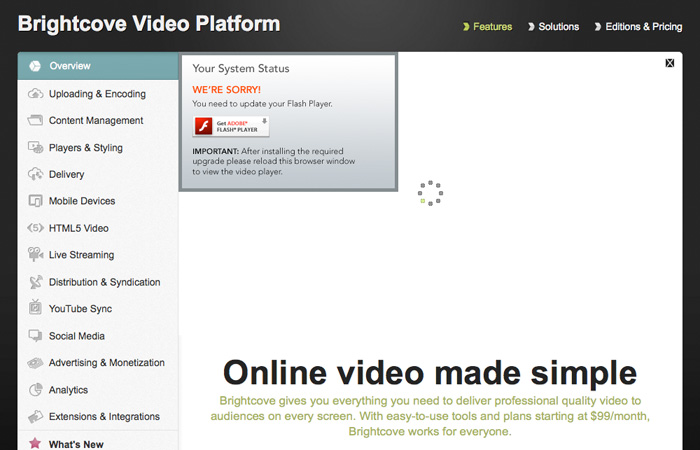
At this point, you should see something like this.
This “We’re sorry!” message is good. It means that Flash Player is disabled in the browser. It looks bad, but it means that Brighcove can’t serve up a Flash-based video. We’re ready to move on to the next step.
If you don’t see this Flash Player error message, it means Flash Player is still installed in Safari. Go back to Gruber’s instructions to make sure you properly removed Flash Player. This is crucial. The rest of the tutorial will not work if you don’t get this right.
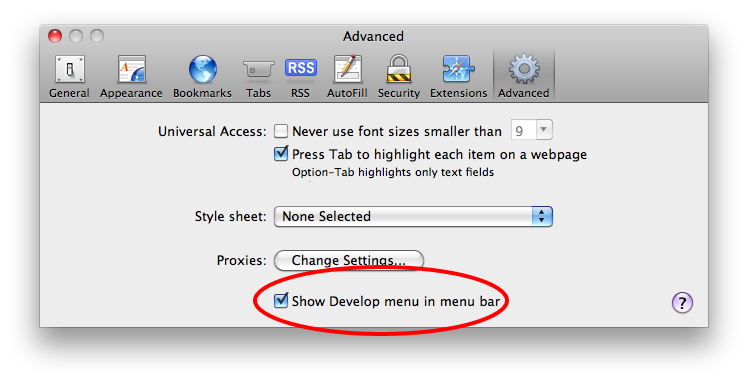
Enable Safari’s “Develop” menu
If you don’t already have Safari’s “Develop” menu enabled, you’ll need that. Go to Safari > Preferences > Advanced and check the “Show Develop menu in menu bar” option as shown above.
This post was published in 2011. In more recent releases of Safari, this option may have changed a bit. If you’re having trouble with this step, I recommend you Google “safari enable develop menu.”
Trick the Brightcove video into HTML5 mode
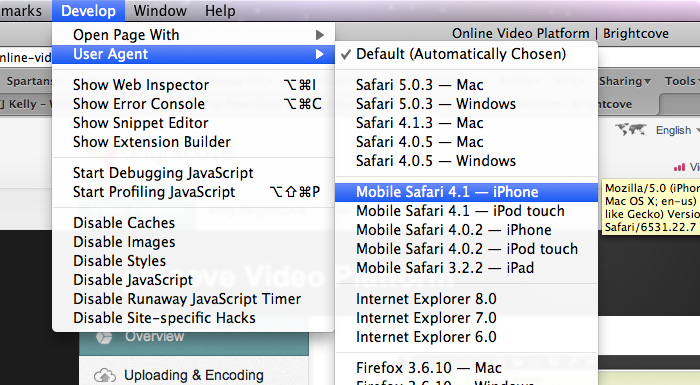
Safari 4+ comes with the ability to render webpages as multiple other browsers, including Mobile Safari for iPad, iPhone, or iPod Touch. In the Develop menu, find User Agent and choose iPhone.
Rendering the webpage in Mobile Safari for iPhone (or iPad/iPod) tells Brightcove that you’re using an iOS mobile device which, by definition, won’t support Flash. So, since Brightcove doesn’t want to exclude Apple fans from their video platform, they serve an HTML5 version.
Update: not all Brightcove videos have this HTML5 version. More about that issue later.
Open Safari’s Activity Window Page Resources panel
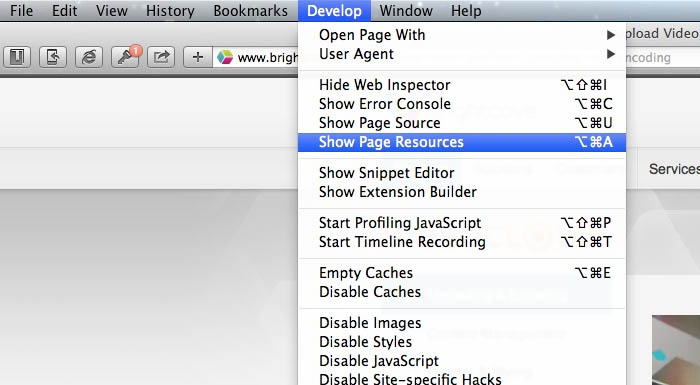
This post originally called for Safari’s Activity Window. In more recent versions of Safari, the Activity Window was discontinued. Instead, this information can now be found in Safari’s Page Resources panel. Enable the panel in Develop > Show Page Resources or by typing Option + Command + A.
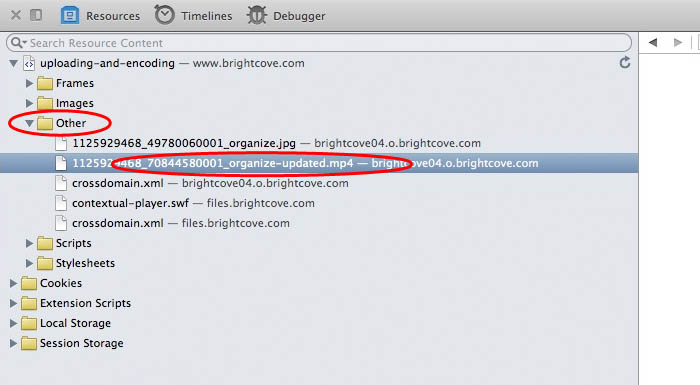
The Page Resources panel shows a list of every asset being downloaded by the browser: every image, CSS file, Javascript file, and yes, video file. Video files are most often listed under “Other.” If your video file is accessible directly from the Page Resources panel (some videos are, but some may not be), you can double click on the video file and voila, you’re done.
Find & open the video file
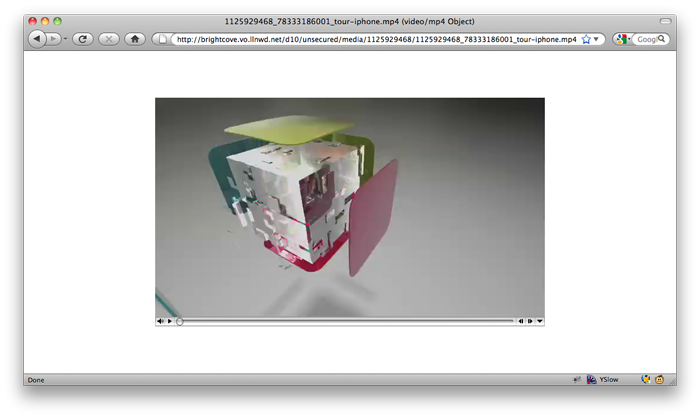
Locate the Brightcove video file you want. It will probably have a .mp4 extension, although any web-friendly video format is possible. Double-click the filename to open the file.
If you don’t see your .mp4 (or .mov, etc.) file in the list, expand some of the folders. Video files are usually listed under “Other.”
One last hiccup: Saving.
For whatever reason, (sometimes) Safari won’t let you save the file you’ve just double-clicked and opened. When the video opens, try sitting Command + S to save the video file. If it works, you’re done!
If it won’t save, this is where Firefox or any other browser comes in. Simple copy the URL of the .mp4 video file and open it in Firefox.
Limitations (updated)
I failed to mention one limitation when I first published this post. For this technique to work, the Brightcove video in question must have a non-Flash fallback.
In my experience, most Brightcove videos are H.264-encoded by default and are served through a Flash player—the same method YouTube and Vimeo use. And like YouTube and Vimeo, without the presence of Flash Player, Brightcove can serve up the H.264 file using HTML5’s <video> element. However, not all Brightcove videos have that <video> fallback. Unfortunately, my technique is useless without it.
Happy downloading
I hope this helps others reclaim a few Brighcove videos. Again I’ll point out that this How-to is not intended to be used for stealing videos. No one likes a thief. But in the event that you have legitimate use for this technique, I hope you find it helpful.
[stripe html_class=”light-grey”]Feedback
Did you find this post helpful? Do you know of another way to download otherwise-protected videos? Did I miss something or get it wrong? Let me know in the comments or tweet at me.
I have tried it, but seems won’t work for me… Can’t find the name of video on the Windows > Activity. It only works with the site you mentioned.
Thanks for the comment, W. The video you mentioned in your tweet doesn’t have a non-Flash fallback. That’s one limitation I forgot to mention in this post.
Thanks for bringing it to my attention. I’ll update my post accordingly. I’m sorry my how-to couldn’t help you!
Cool it’s worked…. but with less quality than the flash video…
Brilliant solution. Thank you. A question:
Seems like the Brightcove platform supports dynamic streaming at various resolutions. I’ve noticed that sometimes, while watching a video with flash, it will kick into high-rez then sometimes kick back down to low rez.
It seems this method identifies the URL of the low-rez version, but if there’s a high-rez non-flash version, I’m not immediately finding it.
I wonder if the non-flash fallback is typically available in a high-rez version too and how to find the URL for the high-rez version.
EJ
Dave & EJ, thanks for your comments.
I hadn’t considered the quality of the video. It makes sense that Brightcove would provide a lower-quality version as a non-Flash fallback, since it’s designed to play on mobile devices.
I haven’t looked around enough to determine if the non-Flash video has multiple versions and, if so, how to find it.
Great points, though. Thanks for bringing them to my attention.
hi.
can you please let me know how can i download any of the videos from this site… they are brightcove videos. (any possibility to download in batch mode):
http://www.brightstorm.com/math/precalculus
Subs, thanks for your comment. Yes, they are Brightcove videos. If you follow the steps outlined above, you should be able to download them. But there are 2 things to keep in mind.
1) Stealing is illegal.
2) These videos must have a non-Flash fallback option for my technique to work. I can’t guarantee that these math videos will have such an option. You’ll have to try the steps and see for yourself.
My tremendous thanks for putting up this work around. Yes, the video quality is lower, but to highlight your comment against piracy, I should mention some news sites are using Brightcove but news stories can be legally referenced for fair use by the subjects of those stories. I work for a small not-for-profit that wished to make up a clip of coverage we’ve received and until I found this walkthrough I was frustrated in doing so effectively. You’ve done very nice work here, thank you once again.
Markeerb, thanks for your comment. That’s very useful information regarding fair-use. Thank you for posting and I’m glad my how-to was helpful for you!
Thanks for this tutorial. It works for Safari 5.0.3 for Windows, but unfortunately, there was no HTML5 fallback file for the video I wanted. Oh well.
+9000 internets to you TJ, this worked perfectly, my wife was in a news spot that was posted in Brightcove and after I found your post and this link to remove Flash from my Mac Safari temporarily
http://forums.appleinsider.com/archive/index.php/t-63300.html
I was able to download the fallback MP4 video. Thanks for helping save this bit for family posterity!
Worked like a charm. Thank you for saving me from insanity! It’s people like you who make the web a wonderful place. Thanks so much for sharing.
Glad I could help, Norris, and thanks for your kind words. Happy downloading.
I’m trying to download the video at this link for a friend so he can add it to his company’s youtube channel. I think I followed your instructions properly, but maybe it doesn’t have the non-Flash fallback? Any help would be greatly appreciated.
http://www.digtriad.com/news/story.aspx?storyid=152945
Thanks for the info! I was able to get the html5 version to display but didn’t see an .mp4 in the activity window. So, I right clicked on the video and did a “view frame source” and was able to see an escaped version of the URL. When the source came up I just searched for .mp4
http:\/\/brightcove.vo.llnwd.net\/pd15\/media\/823412108\/823412108_955867789001_B202-Open-Distribution-vs-Premium-SME-2011.mp4
Take out the “\” characters resulting in:
http://brightcove.vo.llnwd.net/pd15/media/823412108\/823412108_955867789001_B202-Open-Distribution-vs-Premium-SME-2011.mp4
and paste the URL in Chrome or FF to Save As…
Left one of the “\” in.. http://brightcove.vo.llnwd.net/pd15\/media/823412108\/823412108_955867789001_B202-Open-Distribution-vs-Premium-SME-2011.mp4
Andy, thanks for your responses. Are you suggesting that Brightcove changed their display techniques? Or might yours have been an isolated incident? (I haven’t done any testing on the matter recently.)
Hi, just to say many thanks for this trick, it worked just fine on Windows 7. :)
Btw, the fastest way to disable Flash in Windows is simply to unistall it and reinstall it later, as it only takes seconds. (Unistall the “Adobe Flash Player 10 Plugin” to disable it in Firefox & Safari).
Thanks for the comment, Dacs! Glad to know it works on Windows too.
You can save it directly from within Safari. Just click the desired mp4 in the Activity window as described above. Copy that location and paste it into a new Safari window. Then hold the Option (Alt) button down when pushing enter and the file will be downloaded.
1) open up you favorite screen recording software.
2) press “Play” on video.. go to full screen.
3) Press “record” on your screen recorder.
4) Save video
5) All done…
Hi TJ… nearly there, I am stumbling somewhere… have got the mp4 but now Firefox just spins and spins and won’t replay. Any ideas how to capture this file that I’ve managed to isolate with your great tutorial ?
http://brightcove04.brightcove.com/3/791607097001/791607097001_933126033001_Seminar-Series—Regional-Infrastructure-Development-for-Asia-s-Connectivity—Current-Progress-Challenges-and-Ways-Ahead.mp4
Thanks again for your posting, time and effort.
Don’t mind me… brain freeze….just saw Scott’s comment above which has solved all issues. Thanks.
Sometimes a video file (mp4, flv, etc) does not show up in the Activity window.
After following originals steps, do this:
Hold down CONTROL button and mouse click the middle of the player, near but not on the play triangle. Choose “View Frame Source”.
Look through the resulting window of code and find the url (which likely ends in .mp4). The url will have unnecessary slashes in it. Remove those so you have a clean workable url (no spaces, no reverse slashes) and copy paste into Downloads window.
Thanks for the original tip, TJ. Very helpful.
TJ – thank you SO MUCH for this tutorial!
Pete Roser – your tip was critical for me as it seems Brightcove has changed how they embed. TJ should consider adding your tip to this tutorial.
Hi TJ, I tried to download the following videos by using this guided, however it did not work:
http://bcove.me/lzzzh33s
http://bcove.me/3gnl3g6g
http://bcove.me/b2z8pof5
Many, many thanks. Using your tutorial combined with Pete’s comment has worked like a charm for me.
You don’t have to completely uninstall Flash. By simply disabling plugins you disable Flash. To do this in Safari open Safari preferences, click the Security pane, and uncheck Enable Plugins. I’ve successfully downloaded 3 Brightcove videos this way.
Sorry, I forgot to mention one more little tip. When you find the video in the activity window, simply hold down option and double click on it and Safari will download the file for you instead of opening it. Also it may be hard to find in the activity window because the the name will usually be too long and be truncated in the window. Just look for an item in the list that doesn’t have a size listed for it. It’ll probably be the video and there won’t be a size listed because it’s currently loading.
For Windows at least, even easier than uninstalling/reinstalling Flash you can just go into Safari’s Preferences, under Security, and uncheck “Enable Plugins”. This trick works fine, then you can just re-enable plugins. I’d assume it works on Mac too.
Thanks for the post, saved me a major headache.
Tommy, Kevin, and Tom: thank you so much for your comments. I will (someday) update the how-to based on the latest feedback. Glad it’s still proving useful!
Hi TJ,
Can you please help me to download the video from this Nike site:
http://www.nike.com/en_us/sportswear/stories/lookbooks/look_of_sport_always_on_live
I couldn’t find the .flv file from the method you have posted. It’s a good tutorial though!
Thanks!!
I was trying to download a video using your instructions, yet saw no video formats to go after. The video is here: http://link.brightcove.com/services/player/bcpid618568018001?bckey=AQ~~,AAAAAEM5N1U~,8TYAlu2PuKzK4sTt6U23R74dsP6KyiLF&bclid=0&bctid=1483103167001
Any thoughts?
Pingback: Moo! The Musings of a Plaid Cow » How to Download This Old House Episodes
My problem is as follows:
I am running Safari on Windows XP. I have disabled flash but I do not see the MP4 in the Activity window.
I know that this Brightcove video has an HTML5 fallback because it plays on my iPad and iPhone.
Thoughts?
DG: It looks like that video isn’t using Brightcove’s player. I haven’t tested any other player, sorry!
Joe: Have you tried viewing the video on a mobile device?
SF: I haven’t tried this on Windows. Some commenters above may have some advice for you.
To all: Brightcove has updated their methods since I wrote this 18 months ago. Most of what I wrote still applies, but slightly modified. I’ll do my best to stay current on the matter.
I disabled Flash in Safari on my W7 machine. I get the “We’re sorry…” from Flash when the page loads with the video I want.
Then I switch Safari’s User-Agent to iPhone (also tried iPad and iPod). This gives me the HTML5 page of which I copy the URL and place into FF… Page loads, but I cannot download the video with FF add-on “DownloadHelper”….any thoughts?
Never-mind…my bad. Sorry about the first post. Seems to be working as of the moment. Great post!
This helped a ton, thank you!
I am having problems with this video…no mp4 coming up even though Flash disabled:
http://www.chicagobusiness.com/section/multimedia?project=Crain%27s%20Events&title=Crain%27s%20Physicians%20Group%20Breakfast&template=mobile
I love you!!!!
Thanky you
Worked great!!!
It won’t work with this one:
http://admin.brightcove.com/viewer/us20120524.1211/BrightcoveBootloader.swf?playerID=1555958083001&playerKey=AQ~~%2CAAAAPLptWHE~%2Cndp_QiqbO1QnaDaHsMyOYVhObEpiZodi&%40videoPlayer=1632204378001&autoStart=&bgcolor=%23FFFFFF&debuggerID=&dynamicStreaming=true&flashID=myExperience1632204378001&height=298&isUI=true&isVid=true&showNoContentMessage=&startTime=1338476628047&width=530
Does this video have a fallback?
http://link.brightcove.com/services/player/bcpid1680442824001?bckey=AQ~~,AAAAAF4QYhM~,8vMx38_7mU5bXriXNxOtE9SqNkKcWOoh&bctid=1726682376001
I tried and it didn’t work
Does this have fall back?
http://link.brightcove.com/services/player/bcpid1680442824001?bckey=AQ~~,AAAAAF4QYhM~,8vMx38_7mU5bXriXNxOtE9SqNkKcWOoh&bctid=1726682376001
Hey, I know this is a couple months old, but I tried using this method to download a video and it seems the Activity window is gone from Safari! Is there another way to do it?
Good question, CJ, thanks. I haven’t tried it recently, but try looking in Safari’s Web Inspector. There’s a list of page resources that might show the file.
Here’s a screenshot of the resource list and how to find it – https://dl.dropbox.com/u/545430/safari-web-inspector.jpg
Great tutorial! I tried downloading this video using your method but I wasn’t successful.
http://www.dbtv.no/?vid=1998472863001
Like a few others this doesn’t have a back-up MP4 file.
Do you know of any other way to download this particular video?
Hi KC, thanks for your comment. No, I don’t know of any other way to download that (or other) video without a fall-back. I’m sure there must be a way, but I haven’t looked around very hard for it. Thanks again for taking the time to comment!
A much easier way is to use one of the Safari extensions mentioned in the page by Gruber linked to in the article. The extension (not the plugin) is called ClickToPlugin and basically replaces all flash content with a placeholder, which you can then click on to play normally or use HTML5 instead if there is that option. Here’s the link to the extension. http://hoyois.github.com/safariextensions/clicktoplugin/. What makes it so easy is the “download video” option in the shortcut menu you get when playing a brightcove video (or any other video for that matter. Just right click on the placeholder and click ‘download video’. No need to mess around with browsers or anything!
I figured out a faster way to disable flash. Go into Safari. Open up ‘Preferences’ -> ‘Security’ and untick “Enable Plugins”. Done. Flash is now disabled.
None of the Brightcove tricks (I’ve tried them all) has worked for me on the morning and afternoon video updates on autonews.com.
On daily news summaries like this, where I’d like to save and review the videos for subsequent study, I don’t understand why all the secret hoopla. If you can give me an idea of how to defeat this needless Fort Knox-ing of innocuous content like this, I’d be appreciative.
I’m on Mac 10.7.5 using FF 19.0.
Here’s a typical link to a video: http://www.autonews.com/article/20130305/VIDEO/303059870/first-shift-corvette-convertible-debuts&cciid=email-autonews-firstshift#axzz2MgK8VWMC
EMMETT – you nailed it – that worked like a charm for me – thanks!
I described how to extract video from an RTMP source here, http://www.johntantalo.com/blog/extracting-video-from-brightcove-player-with-rtmpdump/
Emmett, you are a genius. The ClickToPlugin worked great.
Great tip. Does brightcove or the video account holder get alerted that you’re downloading a video with the above technique? Just Curious.
Thanks for comment, Ally. To my knowledge, no the owner is not notified of the download. Good question.
is there any way to get subtitles/captions file too.
I found this code in the Brightcove player script on one site which showed that “android” user agent would allow mp4 playback.
return{majorVersion:majorVersion,majorRevision:majorRevision,minorRevision:minorRevision};};brightcove.checkHtmlSupport=function(){var v=brightcove.createElement(‘video’);var videoSupport=true;if(!brightcove.userAgent.match(new RegExp(“android”,”i”))){videoSupport=!!(v.canPlayType&&v.canPlayType(‘video/mp4; codecs=”avc1.42E01E, mp4a.40.2″‘).replace(/no/,”));}
It worked.
If you have a Brightcove account and like me you just wanted to link to your mp4 on Brightcove here’s how:
Login in to Brightcove Video Cloud.
Goto Media (top nav)
Select a video and click Edit in the bottom nav under the video filenames
In Edit Video popup select Video Files in the popup’s nav.
Choose the MP4 in the renditions list and on the right you’ll see Rendition URL with a ‘Copy Link’ link.
What a pain it was to find this. Ugh.
Thank you for this post. On Safari 7.0 on OS X 10,9 , disabling Flash player, any other way then removing the files didn’t help me, but the last part was unnecessary since one loaded with an iOS user agent, safari can download the .mp4 video from the context menu of the Brightcove frame. Just FYI…
You people are angels. Thank you for the tip and tutorial!
Do you know if this would for for this website? I know you can get the link to individually embedded videos, but I am not sure how to use this method to make it work. It seems to be the Brightcove player, but I’m not seeing any “mp4” in the Activity.
http://dci.thefannetwork.org/
As a huge DCI fan and Fan Network subscriber myself, I’m curious about how this worked out for you, using Click2Plugin. Fill us in?
thanks for the tutorial.
I tried using it to download this video but I wasn’t successfull.
http://www.servustv.com/de/Medien/Naturschuetzer-im-Einsatz10
Can you please help me, thanks!
Pingback: brightcovebootloader.swf auto-downloaded? - Mac-Forums Discussions for Apple Products & Services
Thank you to everyone who contributed. I learnt quite a bit reading this post!
I was looking for a way to download a few Forbes videos which for some inexplicable reason weren’t on Forbes’ YouTube channel, where I can readily grab and save them in HD. I discovered by analyzing the source that Brightcove was serving up Forbes’ videos. I looked at several different options for getting at these vids, but really wanted an extension for Chrome when I found this post.
Here’s what I did:
1. Downloaded Safari 5.1.7 for Windows
2. Downloaded the ClickToPlugin extension from here: http://hoyois.github.com/safariextensions/clicktoplugin/
3. Enabled the extension in Safari and set a few preferences
4. Copied the URLs for the specific Forbes videos I was interested in into Safari
Voila — it worked like a charm! The plugin replaces all Flash content with a placeholder and provides several links in the upper left corner for downloading an .mp4 version in different resolutions. A couple vids were even in 1280 x 720 which is the resolution of the Flash version!
What I also learnt from reading the details on the web page above is that the extension will work on many, many other sites including BBC, NY Times, Comedy Central, Vimeo, and a bunch of others — even YouTube!
Again, thanks for the pioneering work by everyone, but especially TJ Kelly and Emmett.
Thank you, T.O.Dave, especially for such a thorough and descriptive comment. Cheers.
TJ –
It seems that Brightcove has gone away from flash and is now playing with a master.m3u8 formatting that cannot be downloaded (streamed from their website it would seem and therefore there is no actual video that can be extracted).
I have for the past 4 hours tried to download a video, using your method, the method above, searching caches, trying different online apps, and NOTHING works.
If you (or anyone else) can contact me when there is something else available, I would greatly appreciate it. Right now, I’m truly at a loss. haha (<– a lighthearted yet weeping laugh)
– Austin
@Austin — when you get to the part after tricking it into HTML 5 mode try this:
1. Inspect the element on the video directly — meaning “CTRL + click” the video element directly – (notice that the difference being if it was still in flash it would give you that flash based BrightCove info window that says “Open Menu, About BrightCove Platform” etc. In this mode, it treats the video like any other element on the page)
2. When the “Resources” tab opens, it should default you into the source of the page.
3. Then, use the search method for “.mp4” and you’ll likely happen upon a json object with all the parameters that feed the player. Contained in Javascript variable that looks like this…
var experienceJSON = {
After that you’ll see LOTS OF elements in the object… but you’re looking for something like this:
–>> http:\/\/brightcove04.brightcove.com\/35\/78144677\/201507\/236\/78644477_4388079806001_4388194913001.mp4 —
This is your golden egg — but don’t just copy paste that into the browser bar… You’ll have to reformat it by changing all the “\/” into just “/” but it will still do the trick.
Whereas the above turns into the following:
—>> http://brightcove04.brightcove.com/35/78144677/201507/236/78644477_4388079806001_4388194913001.mp4
You’ll notice a couple of links like that, it’s because the JSON outputs the video in various sizes. So you have your pick of hat you want to download — either a tiny one or the biggest one (I personally tend toward the biggest one).
Hope that helps — took me hours the first time I used this tutorial — and hours again trying in FF and Chrome until I remembered this tutorial again. (btw, Thanks TJ!)
-Krys
You’re welcome Krys. Thanks for the awesome, detailed comment!
Hi TJ This is what worked for me in Chrome 44.0.2403.125 m on Windows 8.1
1. Chrome://Plugins and disable Flash
2. Reload page of interest with flash on it,. Should get “We’re Sorry” page
3. F12 to open developer tab (or File/More Tools/Developer Tools)
4. Top left under devices select Apple iPhone 5
5. Reload page. Flash should fall back to HTML5. If not, as TJ discussed, this won’t work.
6. Under Resources tab, select Frames/Video/Media and there should be the video. Right click open in new browser, then save..
I only tested this on one website but that was enough
Thanks for the help TJ.
I can’t find this resources tab you said…
hi, i tried to download a brightcove video by clicking the download link, but instead of downloading video its directly open in browser,
how can i download video directly into to browser without open in browser ?
Hi Satheesh, once the video opens in the browser, just hit Cmd + S (or Ctrl + S on Windows) to save the file.
I used acethinker video downloader to save Brightcove videos to my computer, free and works pretty well. You just need to copy the video URL into the box and click the download button. Hope it helps you.
Brief update to this – the most reliable way to locate the mp4 files is to search for js files including the word ‘edge’, as Brightcove uses Edge Suite, and one of the tracking parameters is directly to the mp4 file in question. No need to disable flash. Hope this help.
I tried it on http://tvfplay.com/episode/1/145/169/853 but I couldn’t find any js file with the word ‘edge’. Can you help?
Thank you. Disabling flash worked wonderfully. On this also provided the right click option Save As… providing you found the correct location in which to right click…..Brilliant. Thank you.
Thank you! Glad it helped you
I was getting SO frustrated because I couldn’t find the embedded code for the video. I had disabled flash by installing Click to Flash. And when I was on the resource page, I went up and to where the video was supposed to be playing, and I was able to save the video by right clicking. I wish I would have read the comments lol. Someone else figured it out too! Woohooooooo!!!!!
I was trying to use this method to download the following video (https://www.ecb.co.uk/tv/366449), but was having some issues. I found a m3u8 file and not a mp4 in the resources folder.
I also followed the suggestions provided by krys (@krysfree), but I can’t seem to find the “golden egg” pointing to a mp4 file.
Thanks for the comment. I don’t know much about the filetype you’re describing, but some quick googling turned up this:
https://www.lifewire.com/m3u8-file-2621956
Check out the bottom few paragraphs:
“What you’re probably after is a file converter that can convert the audio or video files that the M3U8 refers to, to and from other audio/video file formats…”
“The only problem with doing this is that sometimes an M3U8 file points to media files that are in several different locations at once…”
and finally…
“If this is the case, I don’t recommend manually searching through all of them to find your files. Instead, just use the free program M3UExportTool. This tool uses the M3U8 or M3U file to identify where all the media files are located and then copies them to a single location. From there, you can easily convert them with a video or audio converter.”
Is that helpful at all?
I think I’ve found the file name (mp4 extension), but I can’t seem to identify it’s location.
It appears to be cleverly hidden on a brightcove server that is accessed with javascript from the website:
http://www.travelandescape.ca/video/
I believe the video I am interested in is
1150537666001_5371312324001_5371244928001.mp4
“When Ghosts Speak” episode of Paranormal Survivor
I had a minor role in the last segment (probably the segment referenced by 5371244928001) and was hoping to get a copy.
The Production company never came through with the promised copy and so I thought I would try this method.
Any advice or help would be most appreciated.
Sorry, Greg. That website won’t let me view the videos at all (Flash, fallback, or otherwise) because I’m not in Canada. I tried a few proxy servers to get a Canadian IP but I still had no luck. Maybe someone closer to home can help? Sorry about that!
Thanks so much TJ, I really appreciate your efforts. From what I can gather, it’s an rtmp stream from edgefcs.net, (rtmp://cp201582.edgefcs.net/ondemand/&mp4;videos/1150537666001/1150537666001_5371312324001_5371244928001.mp4) and I attempted to follow instructions as per John Tantalo’s post from 4 years ago but have not yet been successful (kind of beyond my level of expertise) as I cannot seem to use the “rtmpdump” app on W10 and/or I can’t get past the “handshake”. I know there must be a way to get there, I just have no clue how…
Try this extension Greg. It’s only available on firefox afaik. https://addons.mozilla.org/en-US/firefox/addon/video-downloadhelper/versions/
Is there a way to do this on Windows if you don’t have Safari?
Probably, but I don’t exactly know how. It’s just a matter of disabling Flash and then finding the fallback video file. The steps would be a little different but the overall process is the same.
Hello TJ Kelly ! I cannot download video from https://www.tvnz.co.nz/shows/shortland-street/episodes/s2017-e6400 .
Tried your method and all others without success. Would be really thankful if you could help me, thank you!
PS I have both latest MAC OS and Windows.
I couldn’t try because it’s hidden behind a login. Sorry!
I found myself good using the Pastylink service:
you can find it in the most recent comment of mine on this page
Firefox on Windows user here.
I couldn’t download a brightcove video despite trying some of these advices (I’m not as skilled as I’d have/I’d like to be),
but I’ve found that this service http://pasty.link/ works very well.
It probably uses the techniques you exposed but it’s easier and faster than all I could do
The only matter is that they ask users to disable adblockers for using their services,
but fortunately their ads until now aren’t much intrusive (no pop-ups, only google ads pictures)
Pasty link doesn’t work for all videos…
Bad news! No goodies found.
Video not found. Error #2
Anyone is able to download from https://www.tvnz.co.nz/shows/shortland-street/episodes/s2017-e6400 ?
No success… Tried everything, this method is ain’t working for me.
Thank you in advance!
It’s much much easier to just use youtube-dl. “youtube-dl ” just works.
Good idea, @dantenenbaum:disqus. Thanks for sharing. But that also requires that the user know how to use command line. Not a given for most users, by any stretch.
I used https://pasty.link/ as earlier recommended by SARA BERSANI and I was able to download the videos. Just copy the page link and paste into https://pasty.link/